Edit the Space Between Subjects
DxO PhotoLab 10 introduces Depth Masks, adding distance to the ways a photographer can organize a local adjustment. Foreground, midground, and background become selectable relationships within the image, alongside familiar choices based on subjects, color, and brightness.
Consider an environmental portrait with a railing close to the camera, a person beyond it, and a building farther away. Similar tones may run through all three, yet the desired treatment can differ at each distance. A spatial selection gives the editor a way to work across those planes.
The useful question is straightforward: which relationship needs emphasis? A face, a pale surface, and a distant layer of haze suggest different kinds of selection. Depth Masks expand that vocabulary when the photograph's structure is the starting point.
A Relative Map From One Photograph
DxO's technical explanation describes a two-stage process. Depth Anything V2 estimates the broad spatial arrangement, then a DxO refinement network uses the original image to align that estimate with finer boundaries.
The resulting depth map describes relative near-to-far relationships. It is not a distance measurement in meters. DxO says the process works from a single photograph without captured depth data or specialist camera hardware.
That distinction makes the map useful as an editing aid. It provides a spatial interpretation of the existing image, which can guide where a local adjustment begins, ends, or fades. The photographer chooses the tonal or color change.
In practice, the important test is how the selection follows the scene. A person and an object beside them may belong in the same adjustment even though subject-recognition tools would classify them separately.
Match the Selection to the Picture
A landscape offers a clear application. Near rocks, a wooded slope, and distant hills often need different degrees of texture and contrast. A depth-based selection can help direct attention through those layers while keeping each one connected to the overall light.
Atmospheric perspective gives distant forms softer contrast and less distinct detail. That progression is part of the photograph's sense of space. Recovering detail in a far hillside changes the balance between distance and clarity, so judge it against the foreground rather than viewing the selected area alone.
Portraits call for a similar distinction. PhotoLab 10 includes expanded selections for people and facial features. Those tools suit an edit directed at skin, eyes, or lips. A depth selection suits a different intention, such as treating a person together with nearby surroundings or separating one spatial layer from another.
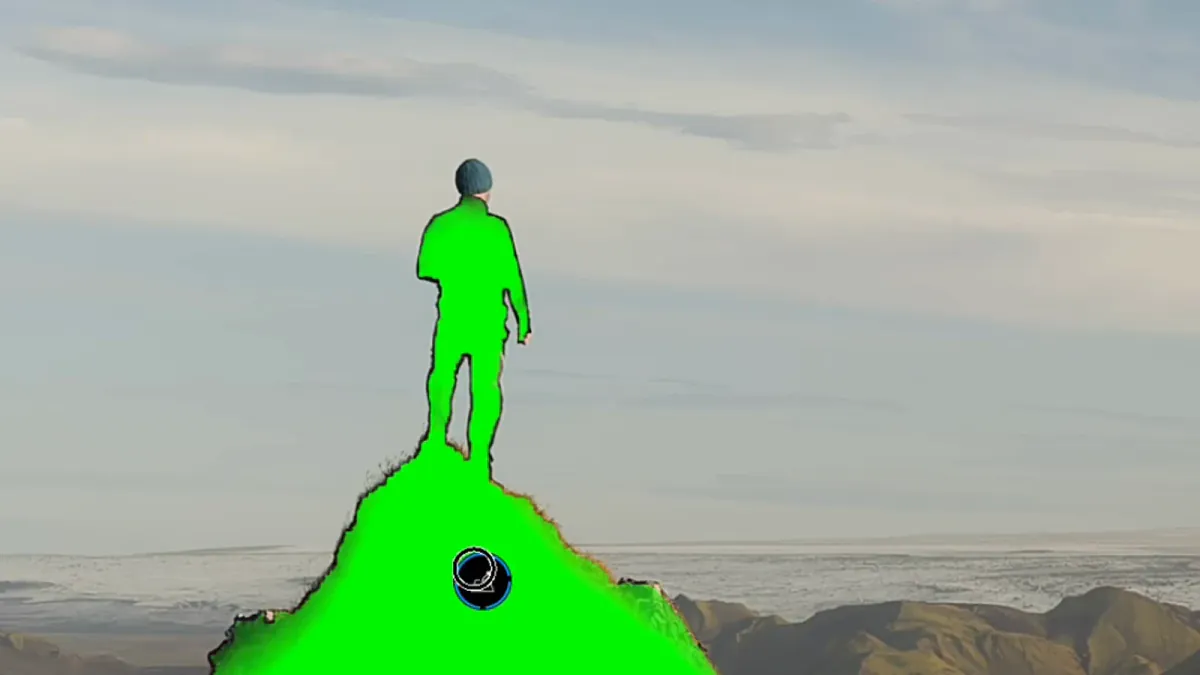
DxO's learning page describes choosing a region with the eyedropper and refining it with the depth selector. Start from the part of the scene you want to affect, then examine how that selection extends through the picture.
Read the Mask Before Refining the Grade
A brief, visible adjustment makes the selection easier to understand. Increase exposure or shift color enough to reveal its reach, move the depth limits, and watch how overlapping details enter or leave the selected region. Return that temporary adjustment to neutral before establishing the finished treatment.
Inspect narrow structures such as hair, branches, and railings, along with boundaries where one object overlaps another. Reflections and translucent materials deserve close attention because the visible image can contain several layers of space in the same area.
Ted Kritsonis's PetaPixel hands-on review describes using the depth sliders to separate parts of a Roman monument from the crowd below. He also found that isolating a particular statue and base required more adjustment. Those observations illustrate the difference between selecting a spatial band and selecting a complete object.
Kritsonis used both the color overlay and black-and-white mask display to inspect the result. That is a useful viewing discipline: examine the selection itself, then return to the photograph and judge what the adjustment contributes.
Keep Color Connected Across the Scene
PhotoLab 10 also brings independent grading controls for shadows, midtones, and highlights. Combined with local selections, these controls give the photographer more ways to shape atmosphere and visual emphasis.
Establish the overall exposure and white balance before refining the spatial grade. Look for the light connecting different parts of the frame. A warm interior lamp, cool skylight, or reflected surface can explain a color transition and help determine where it should soften.
Try one spatial change first. A modest lift in a middle-distance subject may be enough to guide the eye. Compare the whole photograph with the adjustment enabled and disabled, then inspect fine detail at a larger scale.
The related Camera Raw Glow guide approaches atmosphere through highlight spread. The two tools address different relationships: Glow shapes the presence of bright sources, while a depth selection controls which spatial region receives an adjustment. In both cases, the finished picture is the reference.
Choose a Method That Remains Easy to Refine
Depth Masks sit within a broader set of PhotoLab 10 changes, including expanded AI selections and U Point refinements. Terry McDonald's Luminous Landscape assessment considers those tools together, reporting improvements in his workflow alongside some remaining delay during AI-mask adjustments.
That broader view is useful when deciding how to edit a series. Name spatial adjustments by their purpose, such as distant-hill separation or foreground texture, and revisit the selection when the viewpoint changes. A similar composition can contain a different arrangement of distances.
PhotoLab 10's contribution is a more direct way to work with the space a photograph describes. Choose the selection that fits the visual intention, refine its boundaries, and let the final balance of light, color, and detail lead the edit.